

Activating events
Transform events you activate it on SaaS applications.
 View as Markdown
When you activate event data in a SaaS application, Krenalis converts the event into the format required by the target application. Depending on the event type, some extra details needed for activation are added and sent together with the event.
The diagram below shows how events move through the activation process and where the transformation takes place in the full data flow.

What transformation does
A transformation defines the parameters needed to activate an event in the destination application. Which parameters are available, and which ones are required, depend on the specific app and on the event type.
-
When activating a Search event in Google Analytics, the transformation assigns the value of
properties.search_term. -
For a Order Completed event in Mixpanel, it defines the event name (for example,
"Order Completed") and can also include optional details such as order ID or value.
In summary, transforming event data ensures that each event is correctly structured and complete for its destination. By defining which parameters to send, adding the necessary context, and mapping them to the destination's format, both technical and marketing teams can rely on one accurate and reliable activation of every event.
How transformation is done
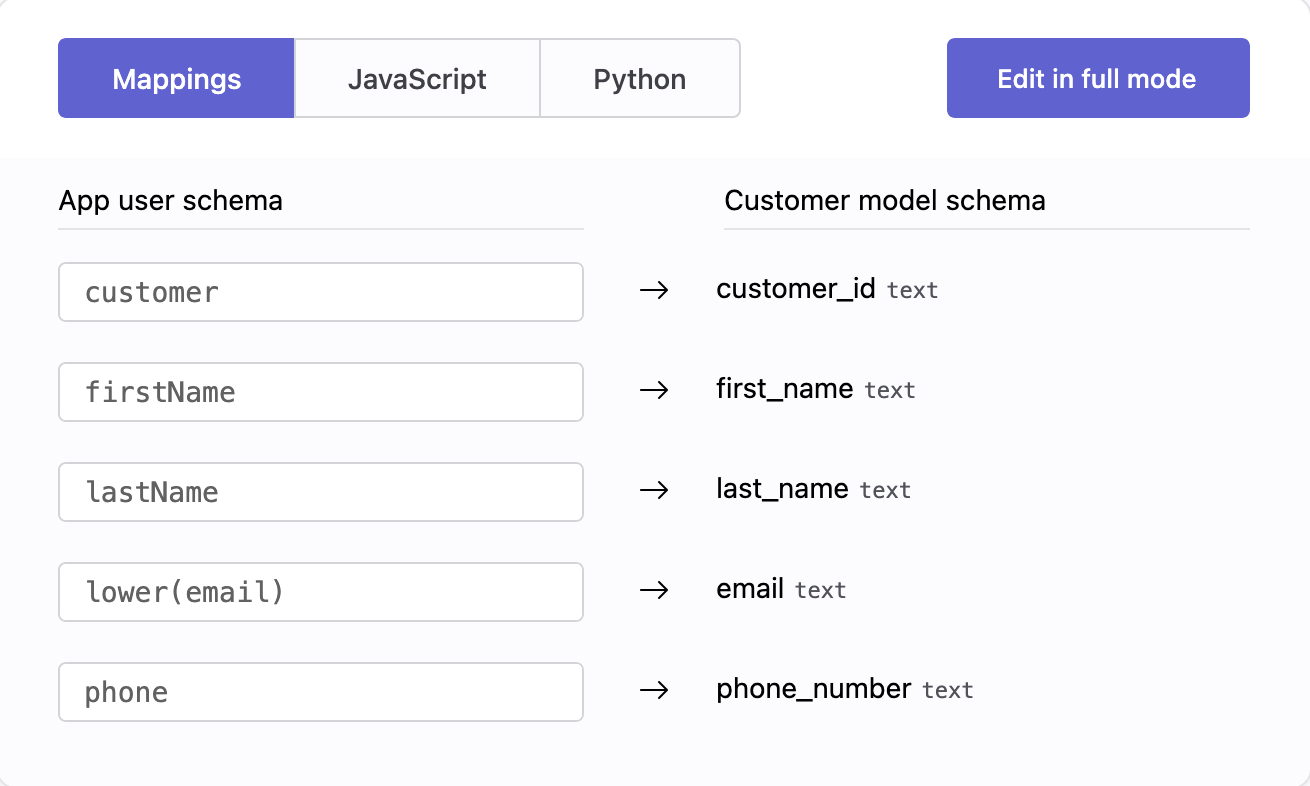
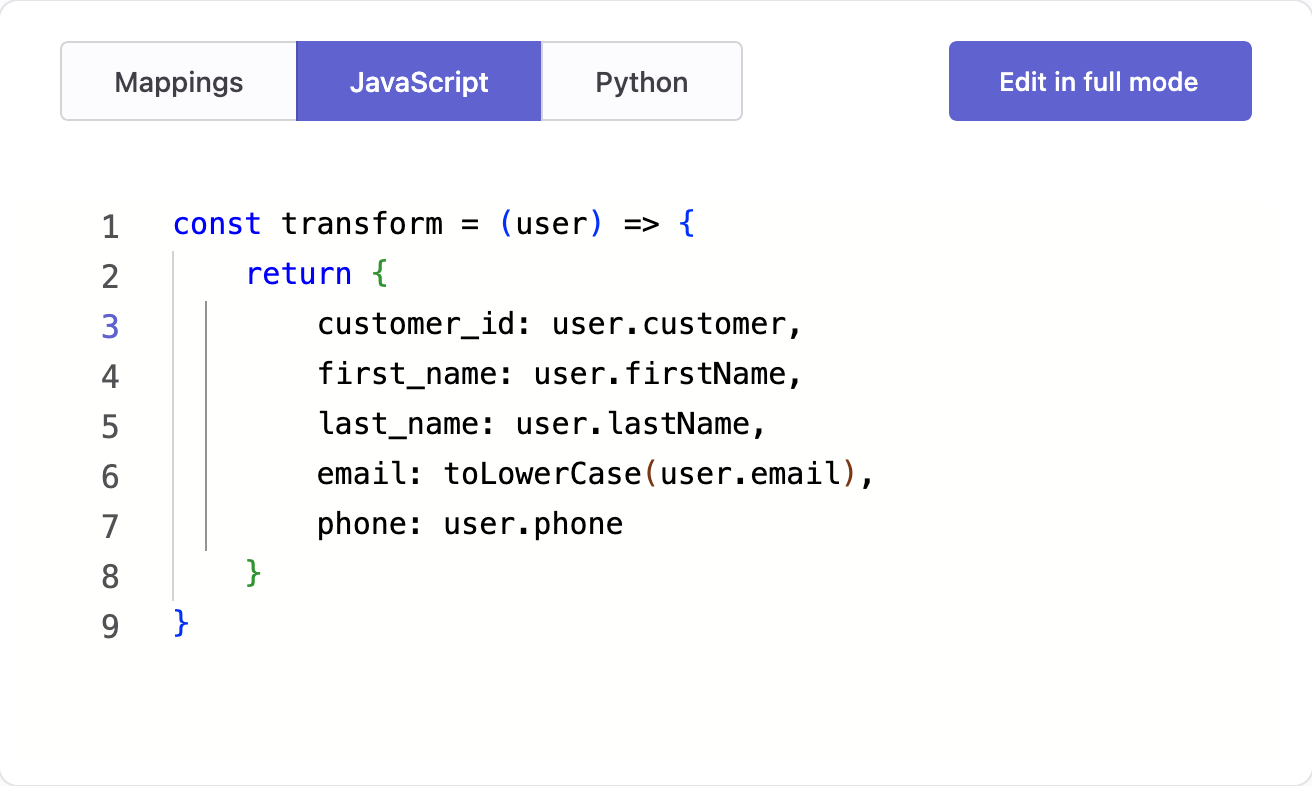
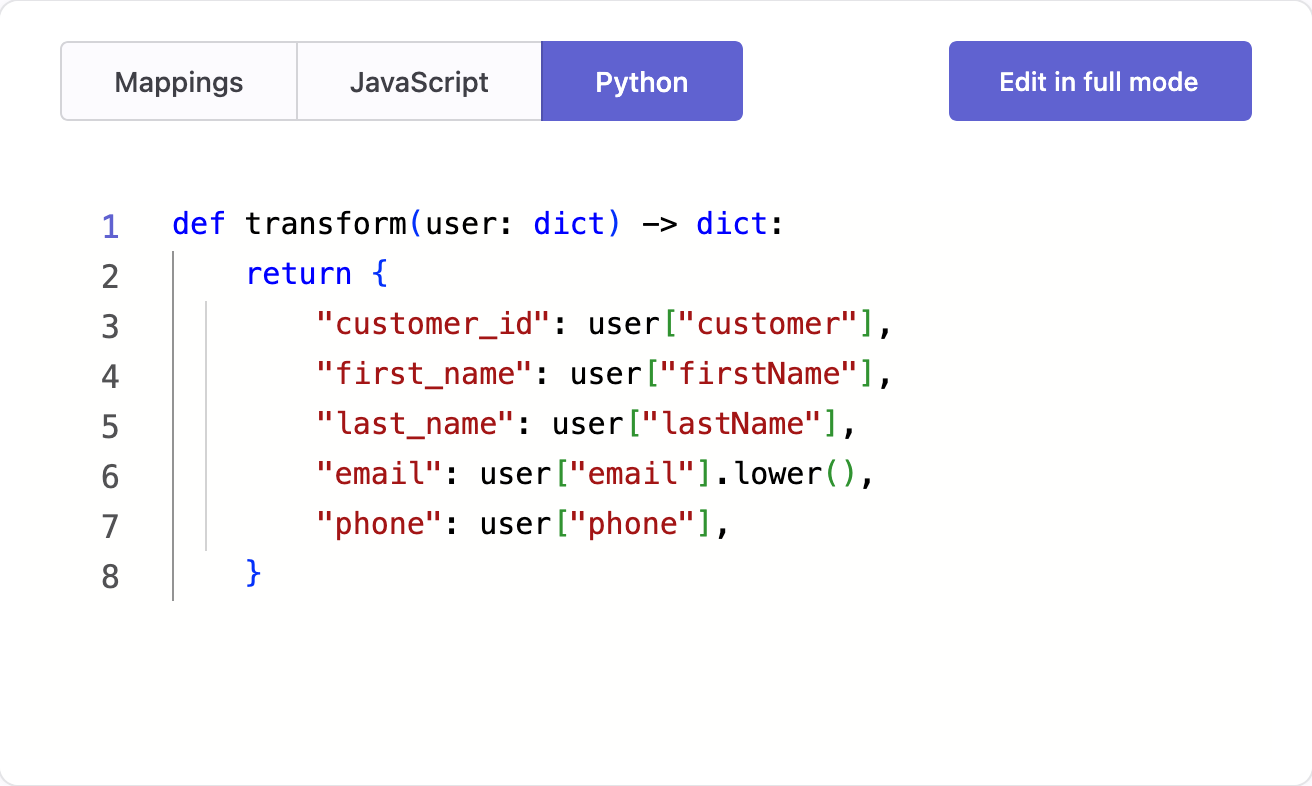
You can define transformations using any of the following methods — Visual Mapping, JavaScript, and Python. Each method performs the same activation logic, so you can choose the one that best fits your workflow and switch methods at any time.
The screens below show how each method looks and works in the Admin console.
Key points
Keep in mind the following key points when creating a transformation for activating events.
-
Assign only mandatory and relevant parameters
Set values only for parameters required by the destination or useful for your use case. Leave all other parameters unset if they are not relevant for activation. -
Use constants when a value never changes
If a parameter always has the same value, set it as a constant. For example, an event name might always be"Order Completed"or aninteractiveflag must betrue. -
Validation in Visual Mapping
Each expression must match the target parameter type. If the types do not match, an error message appears automatically. For some data types, such as JSON, a static check may not be enough. An additional validation occurs when the event is processed. See Visual Mapping transformations for details. -
Validation in JavaScript and Python
Your function must use only the customer-model fields you selected, and return only the mandatory and explicitly selected destination parameters. Ensure each value matches the expected type of the destination. Unlike Visual Mapping, types are not converted automatically, so handle any conversions explicitly when needed. See JavaScript or Python transformations for details. -
Testing transformation
Test your transformation (Edit in full mode → Samples) with real event samples before production. The test shows the exact request that would be sent to the destination, so you can verify parameter names, types, and values. Tests do not send any events. -
Handling errors
If an error happens during transformation, the event is skipped and logged. If sending to the destination fails, the system logs the failure details. Error information may vary depending on the destination.