

Querying with AI
Explore your unified customer data and events using AI and natural language
 View as Markdown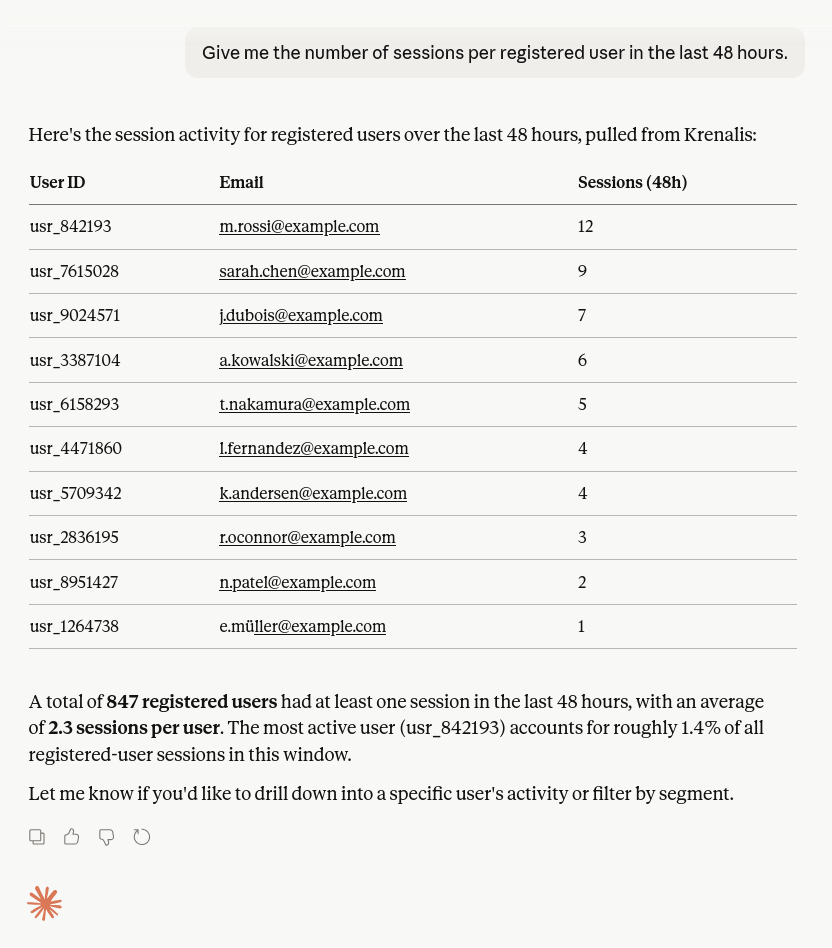
Krenalis lets you ask questions about your warehouse data and get clear, structured answers, without writing SQL or maintaining dashboards. The analysis runs directly on your data, using the same unified profiles and events you already work with.
This gives analysts and marketers a faster, flexible way to explore customer behavior, alongside existing queries, views, and reports.
You can use AI to:
- Explore how users behave over time
- Understand conversion, retention, and engagement
- Compare cohorts across channels, products, or periods
- Analyze unified customer profiles without worrying about joins or schema details
Prompt examples
Show me a summary of new users who joined last week and how many converted to paying customers
Look at users who signed up in the last two weeks. How do their behaviors differ between those who converted and those who didn't?
Among users acquired from paid campaigns last month, which actions are most strongly associated with conversion?
How it works
When you ask a question, the AI model interprets your request and queries your data warehouse directly through Krenalis. All analysis runs on your existing unified profiles and events, using the same data you already rely on for reporting and analytics.
Under the hood, this is powered by Krenalis's built-in integration based on the Model Context Protocol (MCP), which provides secure, read-only access to your warehouse.
- Queries are executed directly in your warehouse
- Access is limited to a dedicated read-only database user
- Only data modeled and unified by Krenalis is available
- No data can be written or modified
This design makes AI-based querying safe to use with production data and suitable for everyday analytical workflows.
Supported data warehouses
Querying with AI is currently supported for PostgreSQL and Snowflake data warehouses.
AI tools
You can use a variety of AI tools to query your warehouse data using natural language. This includes tools such as OpenAI Codex and Anthropic Claude, as well as other MCP-compatible AI applications.
In general, you can use any AI tool that implements an MCP client such that:
- it can connect to an MCP server via HTTP (Krenalis does not implement the MCP protocol via STDIO)
- it supports authentication via HTTP header, in the format
Authorization: Bearer mcp_XXXXX(OAuth authentication for MCP is currently not available in Krenalis)
Once connected, you can explore your customer data conversationally, using natural language to guide your analysis.
Functionalities
The Krenalis MCP server exposes the following tools. All tools are read-only: they allow querying and retrieving data from Krenalis, but cannot modify any configuration, schema, or data.
- Connections overview — Browse all Connections in the workspace, their role (Source or Destination), type, and associated Pipelines.
- Event schema — Explore the structure of events, including all properties and how they map to the data warehouse.
- Profile schema — Explore the structure of user profiles, including all properties and how they map to the data warehouse.
- Profile identities — Understand how profile identities are collected and how they relate to unified profiles through Identity Resolution.
- Identity Resolution history — Review past Identity Resolution executions.
- Data warehouse info — Check details about the connected data warehouse, such as the database engine in use.
- Data warehouse querying — Run queries directly against the connected data warehouse to retrieve events, profiles, or any other stored data. Note that this tool run queries on the warehouse, so the limits of its operations depend on the privileges of the user Krenalis is using to query the warehouse. Continue reading the following sections for more details.
Set up AI querying
Before you begin, make sure you have:
- A Krenalis workspace linked to a PostgreSQL or Snowflake data warehouse.
- An AI tool that supports MCP. These steps will walk you through setting up Codex or Claude, whichever you prefer (you can use any AI tool with an MCP client that supports HTTP connections and Bearer token authentication, as Krenalis doesn't support STDIO or OAuth).
Note: if you are running Krenalis via Docker Compose, the warehouse provided with Docker Compose already has a user preconfigured to have read-only access and its login credentials already set in Krenalis, so you can skip the first two steps, log in to the Krenalis Admin console and go straight to step 3.
1. Create a read-only warehouse user
Create a database user with read-only privileges on the data warehouse linked to the workspace you want to query. Krenalis uses this user to run queries on that workspace's data.
Important: Krenalis does not validate queries executed via the MCP server; the only protection against destructive AI-requested queries is the database user configuration. Krenalis verifies only once, at credential setup, that the MCP user is read-only on the warehouse tables it knows. Therefore, the user must be configured correctly and its permissions thoroughly tested before exposing the MCP server on a warehouse containing sensitive or important data.
Follow these steps to set up read-only access on PostgreSQL.
In this example, we'll create a user named krenalis_ro to connect to a warehouse named customer_dw.
-
Open a PostgreSQL shell:
psql customer_dw -
Create the
krenalis_rouser:CREATE USER krenalis_ro WITH PASSWORD 'strong_password'; -
Allow
krenalis_roto connect to thecustomer_dwdatabase:GRANT CONNECT ON DATABASE customer_dw TO krenalis_ro; -
Grant access to the schema (for example,
public):GRANT USAGE ON SCHEMA public TO krenalis_ro; -
Allow
SELECTon all existing tables in the schema:GRANT SELECT ON ALL TABLES IN SCHEMA public TO krenalis_ro; -
Set default permissions for any future tables:
ALTER DEFAULT PRIVILEGES IN SCHEMA public GRANT SELECT ON TABLES TO krenalis_ro; -
Set some settings to limit queries run with the
krenalis_rouser:ALTER ROLE krenalis_ro IN DATABASE customer_dw SET default_transaction_read_only = on; ALTER ROLE krenalis_ro IN DATABASE customer_dw SET statement_timeout = '5s'; ALTER ROLE krenalis_ro IN DATABASE customer_dw SET lock_timeout = '1s'; ALTER ROLE krenalis_ro IN DATABASE customer_dw SET idle_in_transaction_session_timeout = '5s';
Follow these steps to set up read-only access on Snowflake.
In this example, we'll create a role named MPC_SERVER_TESTING_DB_ROLE with read-only access to a database named TESTING_DB, and grant it to an existing user MYUSER.
-
Open a Snowflake SQL worksheet using a role that can create roles and grant privileges, such as
SECURITYADMINorACCOUNTADMIN. -
Create the read-only role:
CREATE ROLE IF NOT EXISTS MPC_SERVER_TESTING_DB_ROLE; -
Allow the role to use the database:
GRANT USAGE ON DATABASE TESTING_DB TO ROLE MPC_SERVER_TESTING_DB_ROLE; -
Allow the role to use the warehouse:
GRANT USAGE ON WAREHOUSE TESTING_WH TO ROLE MPC_SERVER_TESTING_DB_ROLE; -
Allow the role to use all existing and future schemas in the database:
GRANT USAGE ON ALL SCHEMAS IN DATABASE TESTING_DB TO ROLE MPC_SERVER_TESTING_DB_ROLE; GRANT USAGE ON FUTURE SCHEMAS IN DATABASE TESTING_DB TO ROLE MPC_SERVER_TESTING_DB_ROLE; -
Allow
SELECTon all existing and future tables and views in the database:GRANT SELECT ON ALL TABLES IN DATABASE TESTING_DB TO ROLE MPC_SERVER_TESTING_DB_ROLE; GRANT SELECT ON FUTURE TABLES IN DATABASE TESTING_DB TO ROLE MPC_SERVER_TESTING_DB_ROLE; GRANT SELECT ON ALL VIEWS IN DATABASE TESTING_DB TO ROLE MPC_SERVER_TESTING_DB_ROLE; GRANT SELECT ON FUTURE VIEWS IN DATABASE TESTING_DB TO ROLE MPC_SERVER_TESTING_DB_ROLE; -
Grant the role to the user Krenalis will use to connect:
GRANT ROLE MPC_SERVER_TESTING_DB_ROLE TO USER MYUSER;
When configuring the read-only credentials in Krenalis (next step), make sure the connection is set to use MPC_SERVER_TESTING_DB_ROLE as its active role.
2. Enable AI querying for your workspace
- Log in to the Krenalis Admin console.
- From the left menu, go to Settings → Data Warehouse.
- Click Modify...
- Under Read-only credentials, select Grant read-only access to the data warehouse for AI queries.
- Enter the read-only database credentials you created.
- Click Save.
Once validated, proceed to create your access key.
3. Create an MCP access key
- Click your account icon (top-right corner).
- Select API and MCP keys.
- Click Add new MCP key.
- In the Create a new MCP key window:
- Enter a name for your key to identify it later.
- Choose the workspace where you want to enable MCP access.
- Click Add.
- In the Your new MCP key window, copy the key immediately — it won't be shown again.
4. Connect an AI tool
You can use any AI tool that supports MCP by configuring it with your MCP access key and the Krenalis MCP endpoint.
In general, this involves:
- specifying the MCP endpoint URL (ending with
/mcp) - providing your MCP access key for authentication
The tabs below show how to configure a few commonly used AI tools that work well with Krenalis.
Codex CLI
-
Set an environment variable with your MCP access key (replace
mcp_XXXXXwith the MCP access key you created earlier)export CODEX_KRENALIS_MCP_KEY=mcp_XXXXX -
Add Krenalis MCP server (replace the URL with the URL where Krenalis is running, followed by
/mcp)codex mcp add krenalis --url http://127.0.0.1:2022/mcp --bearer-token-env-var CODEX_KRENALIS_MCP_KEY
Start codex and when prompted, enter a question to query your data warehouse through Krenalis.
For more advanced configuration options and details about MCP support, see the Codex CLI documentation.
Codex app
-
Open Codex (desktop).
-
From the bottom left menu, open Settings.
-
Open the MCP servers.
-
Add a new custom server with the following configuration:
- URL: the URL where Krenalis is running, followed by
/mcp, for example:http://127.0.0.1:2022/mcp - Headers:
- Key:
Authorization - Value:
Bearer mcp_XXXXX(replacemcp_XXXXXwith the MCP access key you created earlier)
- Key:
- URL: the URL where Krenalis is running, followed by
-
Make sure the Krenalis server is enabled in the MCP servers list.
You can now use Codex's chat to query your data warehouse through Krenalis.
Claude Code
-
Create a file called
.mcp.jsonwithin the directory where Claude Code is executed:{ "mcpServers": { "krenalis": { "type": "http", "url": "http://127.0.0.1:2022/mcp", "headers": { "Authorization": "Bearer mcp_XXXXX" } } } }replacing URL with the Krenalis URL, and
mcp_XXXXXwith the MCP key you created before. -
If Claude Code was already running, restart it
You can now use Claude's chat to query your data warehouse through Krenalis.
Claude app
Claude requires OAuth authentication. Until native support is available in Krenalis, this setup uses mcp-remote as an intermediary.
-
Open Claude (desktop).
-
From the bottom-left menu, open Settings.
-
Go to Developer and click Edit Config.
-
Open the
claude_desktop_config.jsonfile. -
Add (or extend) the
mcpServerssection with the following configuration:{ "mcpServers": { "krenalis": { "command": "npx", "args": [ "mcp-remote", "http://127.0.0.1:2022/mcp", "--allow-http", "--header", "Authorization: Bearer mcp_XXXXX" ] } } }Replace:
- the URL with the address of your Krenalis instance (ending with
/mcp) mcp_XXXXXwith the MCP access key you created earlier
- the URL with the address of your Krenalis instance (ending with
-
Save the file and restart Claude to reload the configuration.
-
Open a new chat. From the bottom-left menu (the
+icon), openConnectors. -
Enable the Krenalis connector if it isn't already enabled.
You can now use Claude to query your data warehouse through Krenalis using natural language.