

Ingest users from Segment
Connect Segment via webhook to import user data.
 View as Markdown
Krenalis connects with Segment through webhooks to receive user data via real-time events. Once connected, Krenalis automatically stores users in your workspace's data warehouse for unification and activation.
How it works
- Set up a webhook. Set up a webhook on Segment.
- Filter events. Choose what events to collect.
- Map the data. Match each event property to your Customer Model using Visual Mapping, JavaScript, or Python.
- Ingest users. Krenalis automatically stores your users in the workspace's data warehouse, ready for unification and activation.
Steps
1. Connect Krenalis with Segment
- In your Krenalis workspace, open the Sources page.
- Click Add a new source ⊕, then select the Segment card.
- Click Add source....
- Click Add to complete the connection.
- On the connection page, click Settings → Event write keys and copy the event write key and the endpoint URL
2. Add a webhook on Segment dashboard
Then proceed to create a webhook destination in Segment:
-
From the Segment dashboard, go to Connections → Destinations.
-
Click Add destination, search for Webhook, then select it.
-
Click Add destination on the webhook page.
-
Choose the data sources to send to Krenalis, and enter a destination name and click Next.
-
Enter a name for the destination and click Create destination.
-
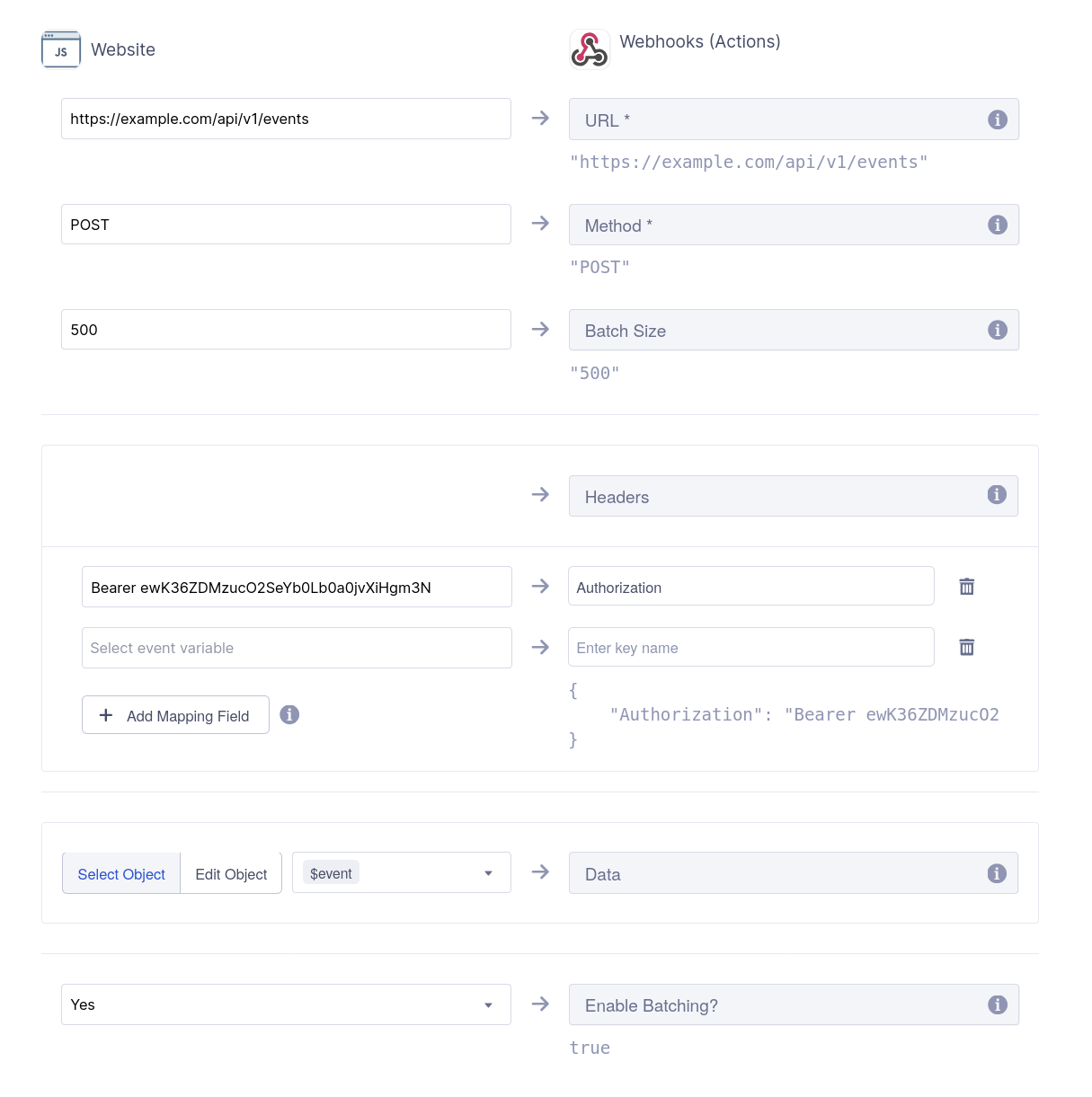
In Mappings, click New Mapping, select Send, and set:
Field Value URL The endpoint copied earlier. Method POSTBatch Size 500Headers Click Add Mapping Field, enter Authorizationas the header name, andBearer EVENT_WRITE_KEYas the value, whereEVENT_WRITE_KEYis the write key you copied earlier.Enable Batching YesRefer to the following screen:
-
Save and enable the pipeline.
3. Debug the events
Use the Event debugger in your source connection in the Krenalis Admin console to verify that events are received correctly.
-
In Krenalis, open your source connection.
-
Go to the Event debugger tab.
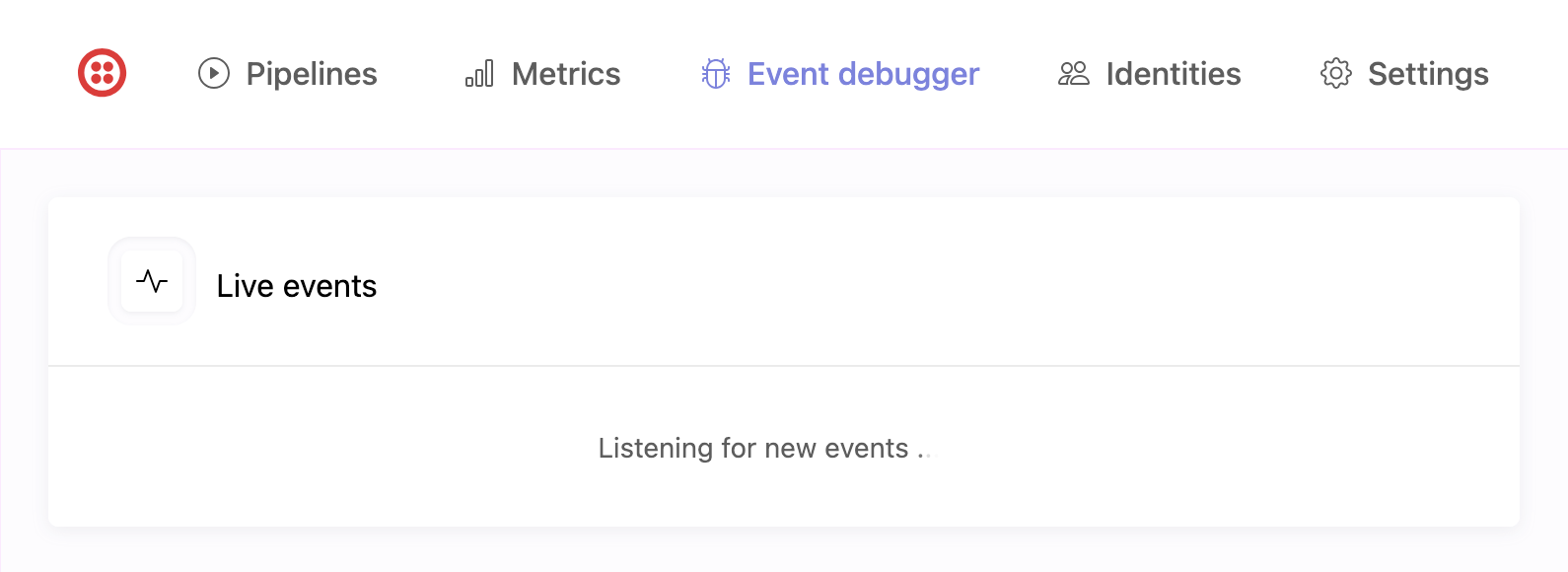
It shows a live sample of the most recent events received for this source connection. Use it whenever you need to quickly confirm that events are arriving as expected and to inspect their contents in real time.
-
Generate an
identifyevent in Segment. The event should appear within a few seconds: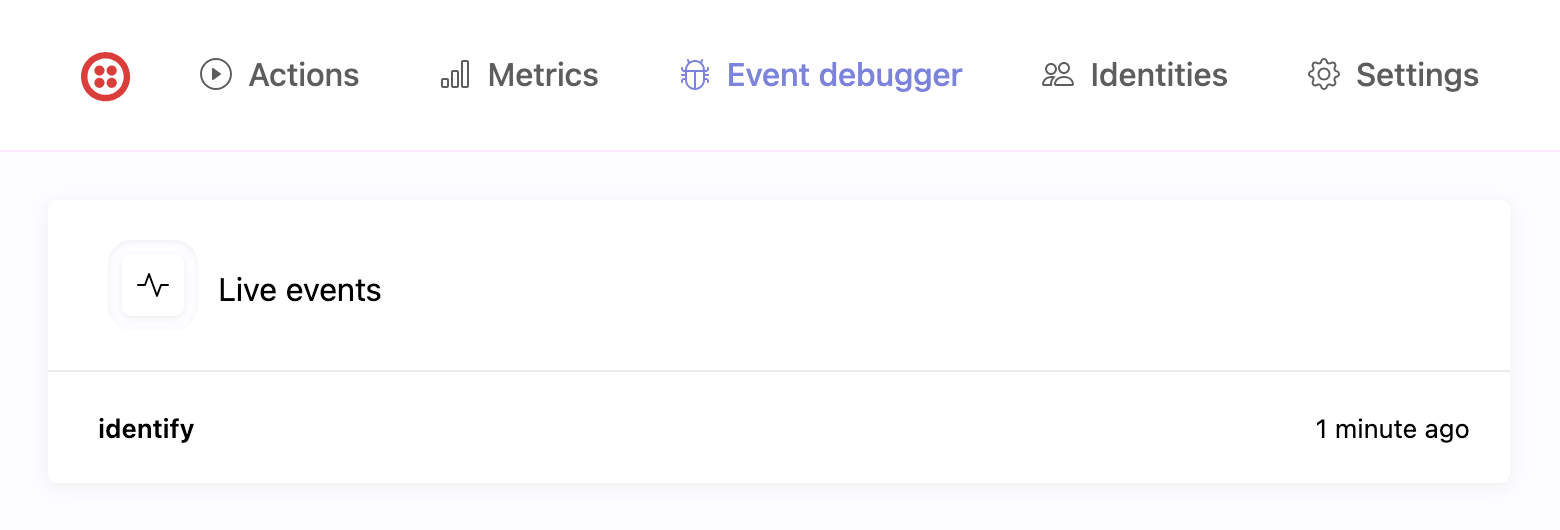
-
Click the event in the list to view its JSON payload and confirm the data sent from your app.
{
    "anonymousId": "b27c5d9f-92a7-4d30-b21a-4df21a6872c2",
    "context": {
        "browser": {
            "name": "Safari",
            "version": "17.2.1"
        },
        "ip": "172.91.24.57",
        "library": {
            "name": "krenalis.js",
            "version": "1.0.0"
        },
        "locale": "en-US",
        "os": {
            "name": "macOS",
            "version": "14.5"
        },
        "page": {
            "path": "/dashboard",
            "title": "User Dashboard",
            "url": "https://app.example.com/dashboard"
        },
        "screen": {
            "width": 3024,
            "height": 1964,
            "density": 2
        },
        "session": {
            "id": "1766272512048"
        },
        "timezone": "America/Los_Angeles",
        "userAgent": "Mozilla/5.0 (Macintosh; Intel Mac OS X 14_5) AppleWebKit/605.1.15 (KHTML, like Gecko) Version/17.2.1 Safari/605.1.15"
    },
    "messageId": "f9189a52-b37b-4d7d-9f2d-08b91d85fa9c",
    "receivedAt": "2025-10-20T16:15:24.340Z",
    "sentAt": "2025-10-20T16:15:24.327Z",
    "originalTimestamp": "2025-10-20T16:15:23.992Z",
    "timestamp": "2025-10-20T16:15:24.010Z",
    "traits": {
        "email": "emily.johnson@example.com",
        "plan": "Enterprise",
        "company": "Acme Corp",
        "jobTitle": "Product Manager",
        "country": "United States"
    },
    "type": "identify",
    "userId": "703991475"
}
If no event appears after a few seconds:
- Check your application logs for errors.
- Ensure your event write key and endpoint are correct.
💡 See the Event spec for full details on the event schema.
4. Add a pipeline to import user data
- Click on the Pipelines tab of the connection for Segment.
- Next to the Import users into warehouse pipeline, click Add pipeline....

This is an "Import users" pipeline type, which transfers identified user profiles from events received from Segment into your warehouse.
Each pipeline defines how and when user data flows from Segment into the warehouse. You can add multiple pipelines per connection to handle different data segments or destinations.
5. Filter events
The filter selects which users to import based on the collected events:
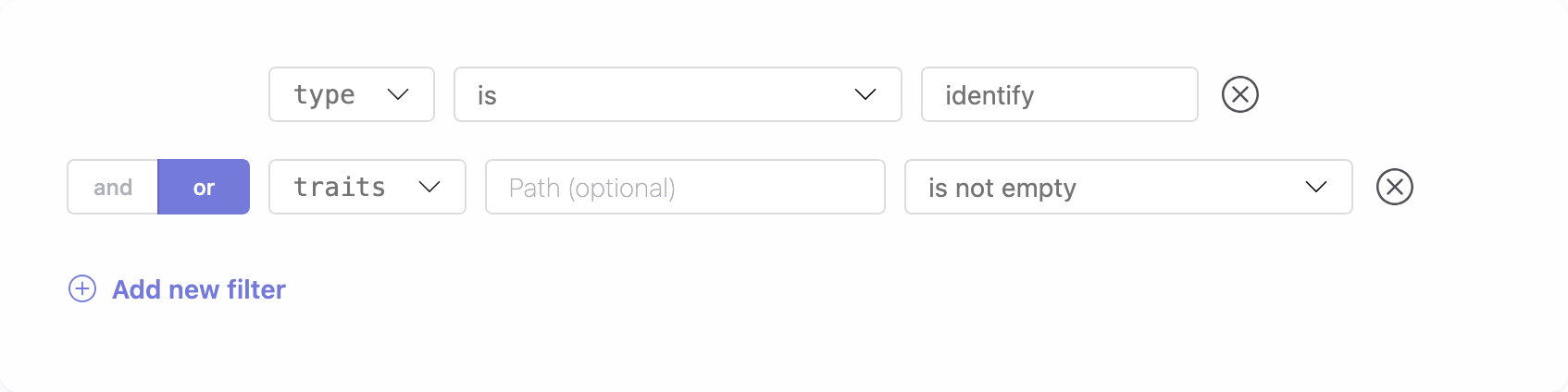
It is preset to import user data only if the event is of type identify—with or without traits—or if it is not an identify event but includes traits. For now, you can leave it as configured. Adjust this filter only after gaining experience with event handling.
6. Transformation
The Transformation section lets you populate your Customer Model properties using user traits from collected events. You can choose between a Visual Mapping interface or advanced transformations written in JavaScript or Python.
You have full control over which properties to map—assign only those relevant to your business context and leave others unassigned when no matching values are available.
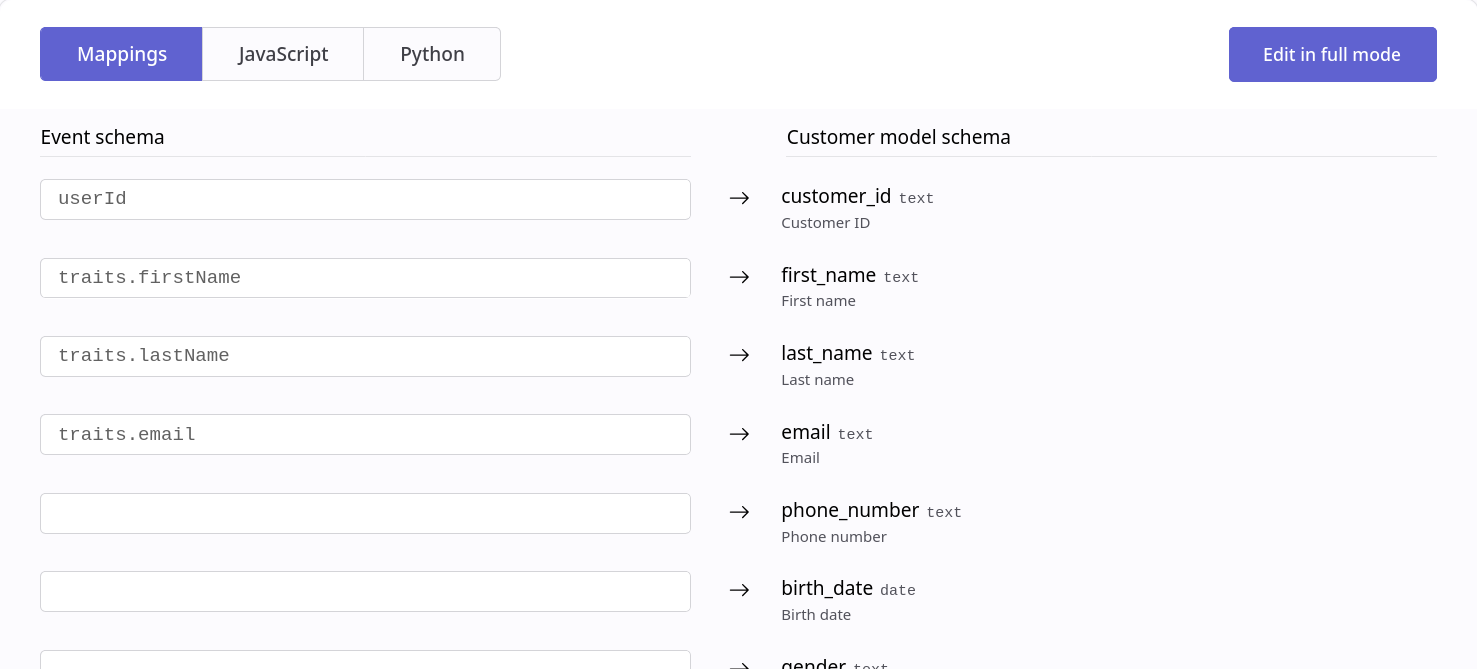
For complete details on how transformations work for harmonization, see how to harmonize data.
7. Save your changes
When you're done, click Add (or Save if you're editing an existing pipeline).
The new pipeline will appear in your source connection and can be edited or disabled at any time.
Pipelines
Once saved, the new pipeline appears in the pipelines list for Segment. From here, you can monitor imports, adjust filters, and manage transformations. Each pipeline defines how and when users flow from Segment into your warehouse.

| Column | Description |
|---|---|
| Pipeline | Name and description of the pipeline. |
| Filter | Condition that determines which events are processed. If not set, all events are included. |
| Enable | Switch to activate or deactivate the pipeline. When disabled, no events are processed. |
| Manage | Edit settings such as filter and transformation. |
| ⋮ (More) | Additional options, such as deleting the pipeline. |