

Alter the profile schema
 View as Markdown
Your schema can evolve over time as your business, data sources, and customer processes change. Updating it ensures that Krenalis continues to represent your users accurately and consistently as your needs grow.
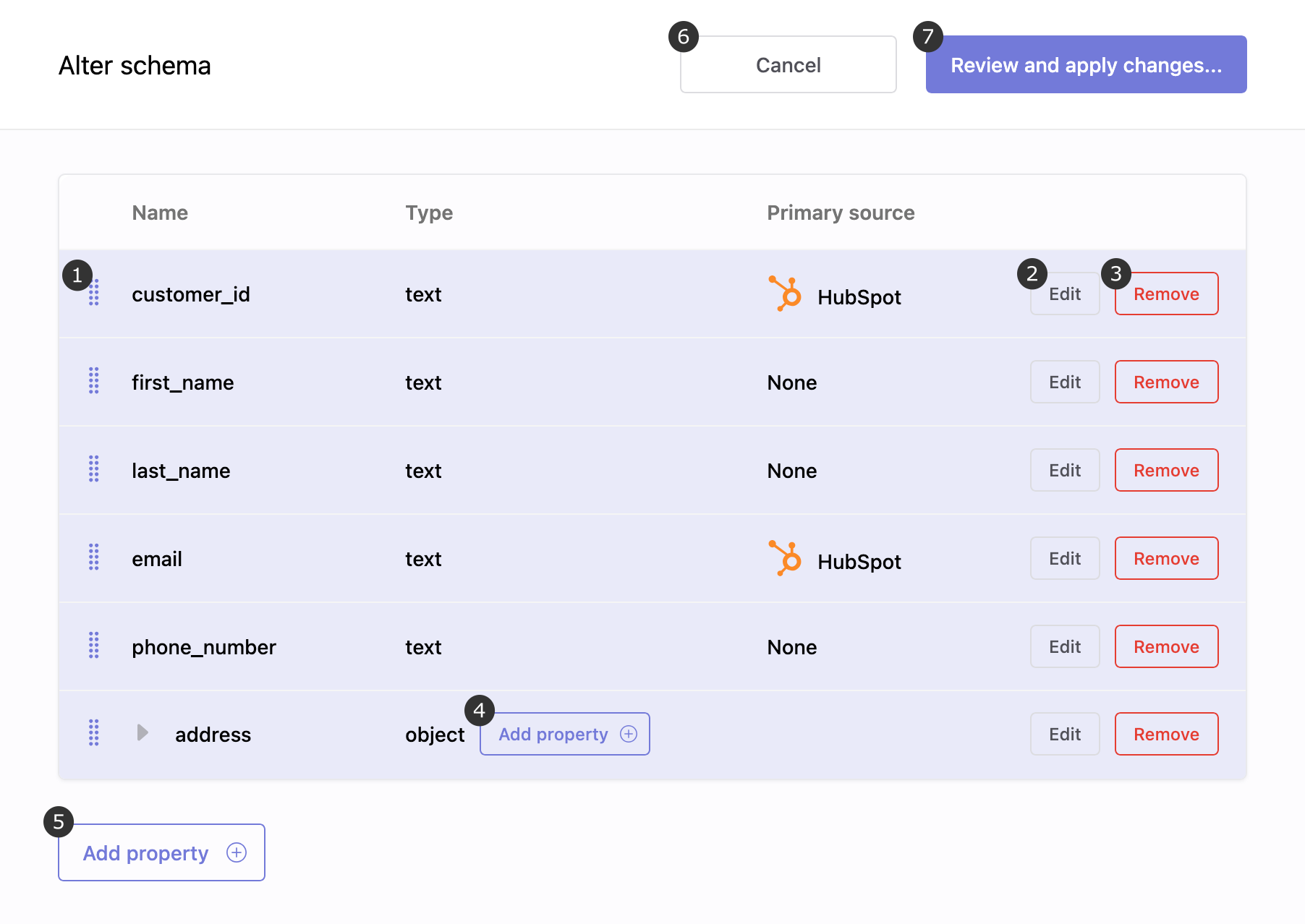
The Alter schema panel is where you review and apply updates to the workspace's profile schema. From here, you can add, edit, or reorganize properties, and preview the statements Krenalis will execute in the workspace's data warehouse to keep everything aligned.
- Sort: drag a property to reorder it.
- Edit: update the property's name, description, and primary source.
- Remove: delete the property from the schema.
- Add sub-property: add a nested property inside an object.
- Add property: create a new top-level property.
- Cancel: discard all pending changes and return to the schema view.
- Review and apply changes: preview all modifications and ensure the schema update behaves as intended before you commit it.
How and when to modify your schema
Keeping the profile schema up to date is a normal part of how your organization evolves. As products change and new requirements emerge, the schema must adapt so it accurately reflects the information your business uses. You typically update the schema when you:
- Reorganize or simplify the user model
- Align user profiles coming from different sources
- Add a new data source that introduces additional properties
- Prepare new transformations, enrichment logic, or activation workflows
In most teams, schema changes follow a straightforward workflow: identify a new need, propose the change, and ensure that every system depending on the schema remains aligned. Krenalis supports this process by allowing you to add, update, or remove properties while keeping ingestion pipelines, transformations, and destinations consistent.
This ensures a clear and flexible schema that keeps your data reliable and your operations efficient — giving both technical and business teams a shared, consistent view of your users.
Supported operations
Krenalis allows you to update multiple aspects of the profile schema. You can:
-
Add properties
Add new properties at any level, including inside nested objects. -
Remove properties
Remove properties that are no longer needed or have been deprecated. -
Rename properties
Change property names while preserving the associated data. -
Reorder properties
Move properties at the top level or within nested objects to improve clarity and consistency. -
Update descriptions
Refine documentation to make the schema easier to understand for your team and for integrations.
Add properties
The panel below displays the form used to add a new property to your profile schema. Here, you can define the property's name, type, description, and optional primary source.
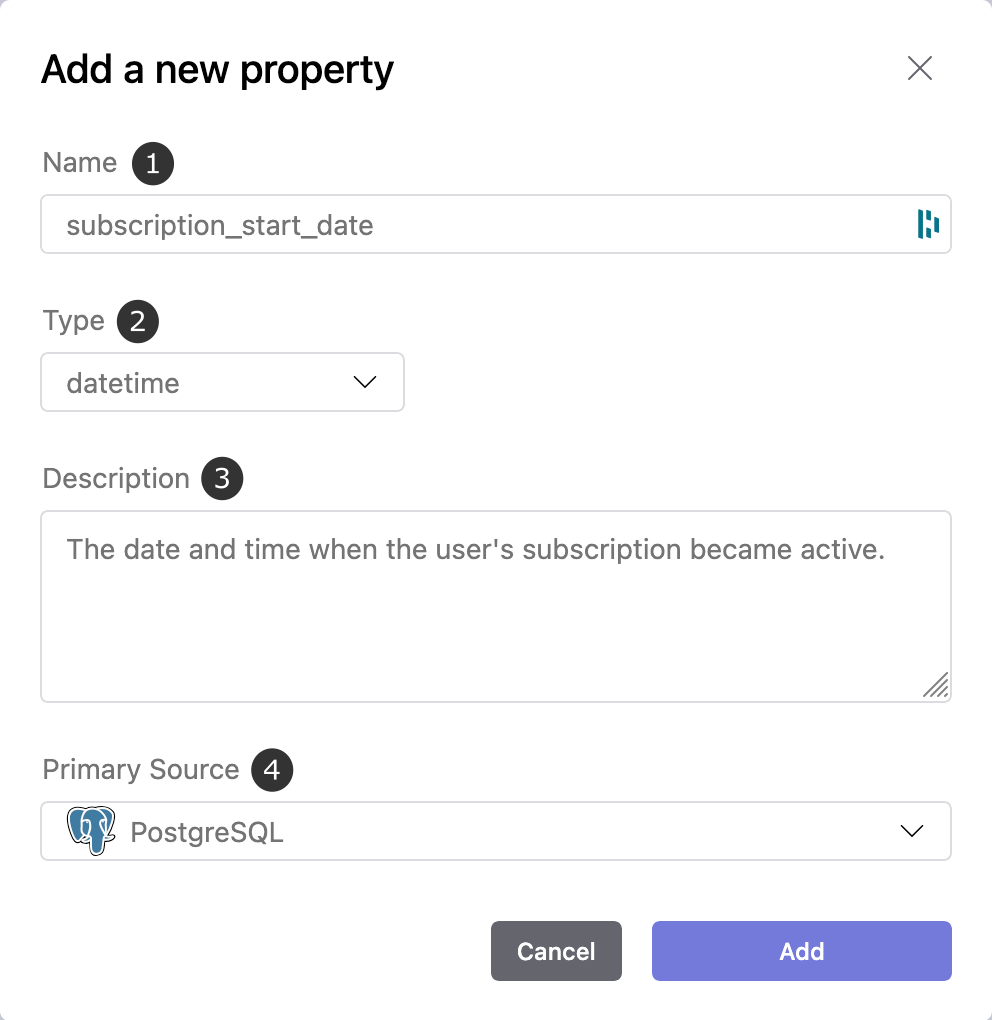
- Name: The property name, also used as the column name in the workspace data warehouse.
It must start with a letter or an underscore, and may include letters, numbers, and underscores. These naming rules ensure compatibility with SQL databases and downstream tools.
- Type: The property's data type, selected from the supported types (string, boolean, int, float, datetime, array, object, etc.). Some types include required or optional parameters, which you will be prompted to configure when selecting them.
- Description: An optional field used to explain what the property represents. The description also appears in the Admin console, making it easier to understand the property when building transformations.
- Primary Source: The authoritative source for this property. When this source first sets a value for a user, that value remains associated with it and will not be overridden by values from other sources as long as the source continues to provide one. This field is optional — leave it unset if no source should have priority.
Remove properties
When you remove a property, all data associated with it is permanently deleted. Before deleting a property, make sure it is not used in any filters, transformations, or destination logic. Since the corresponding column is also removed from the users view, verify that no application, dashboard, or downstream tool depends on it.
Removing a property is irreversible, so review your workflows carefully before proceeding.
Rename properties
Before renaming a property, confirm that it is not referenced in active filters, transformations, or destination logic. Since the corresponding column is also renamed in the users view, check that no application, dashboard, or downstream tool depends on the current column name.
Reorder properties
When you reorder properties, the columns in the profiles view are rearranged accordingly. Make sure that no application, dashboard, or downstream tool depends on the current column order, as the new ordering may affect any process that expects a specific layout.
Change property types
Sometimes a property needs to evolve — for example, when a value originally stored as string should instead become a number, a boolean, or a more structured type. Directly changing the type of an existing property is not supported, but the recommended workflow is simple and ensures consistency across ingestion, transformations, and activation workflows.
In these situations, the safest approach is usually to keep the existing property as-is and create a new property with a different name and purpose. This preserves historical data and avoids conflicts with systems that rely on the original type.
Important considerations for event-based user data
When a property is populated through user events, its historical values cannot be reconstructed. Krenalis does not support replaying past events, so a property with a new type would only start receiving values from future events.
For this reason, changing the type of property that is written by events is generally not recommended, as all past data for that property would be lost.
To update the type of a property, follow this workflow:
-
Create a new property
Add a new property with the desired type and the same semantic meaning as the original one. -
Update sources
Update all transformations involved in user collection and event-based collection so they begin writing to the new property alongside the old one. -
Reimport your data
Reingest data from your sources so the new property is populated with complete and up-to-date values. This ensures that the new property is properly initialized before switching destinations and other workflows to use it. For databases, files, and SaaS tools, remember to disable Run incremental import if it is enabled. -
Update destinations
Update destinations so they start using the new property. For destination pipelines, update filters to reference the new property. For SaaS tools, replace usages of the old property in the profile schema. Finally, update any transformations that currently read from the old property so that they read from the new one instead.Update your downstream tools and warehouse queries
Before removing the old property, ensure that all BI dashboards, SQL queries, dbt models, and internal tools that read from your data warehouse have been updated to reference the new column instead of the old one. -
Remove the old property
Once all your sources, destinations, and internal workflows read from and write to the new property—and your data is fully consistent—you can remove the old property.
This process keeps your schema stable, prevents type conflicts, and ensures that every part of your data flow continues to operate smoothly. By introducing the new property safely and phasing out the old one only after all systems have transitioned, you minimize errors and maintain a clean, reliable model as your business evolves.
Review and apply changes
After reviewing your updates, click Review and apply changes.... Krenalis will show you the ALTER TABLE statements that will be executed in the workspace data warehouse — the SQL operations required to update your tables — so you can confirm the impact before applying the changes.
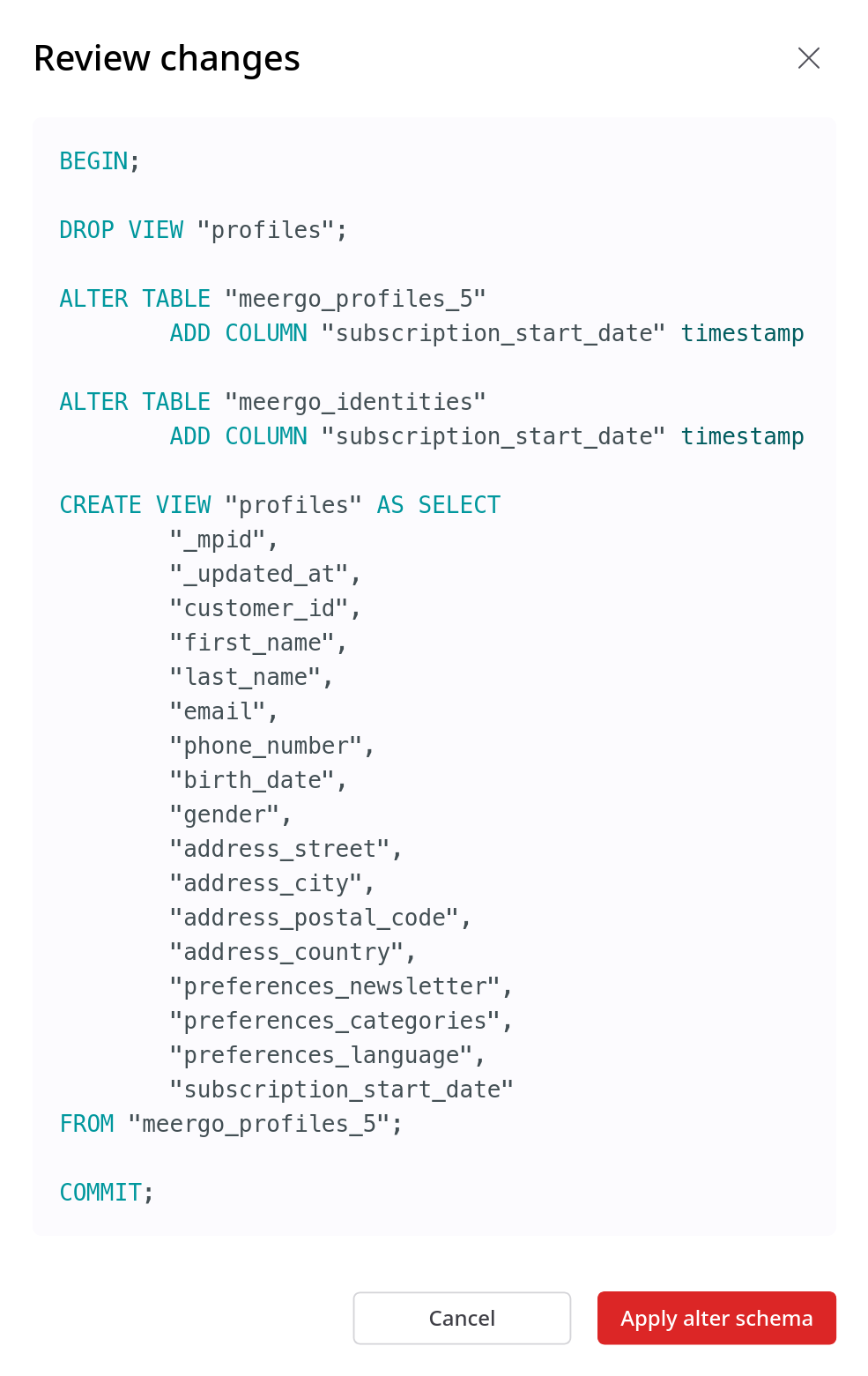
The preview lists all tables that will be affected by the schema change. This includes:
-
krenalis_profiles_<version>table, which contains unified user profiles. The<version>number increases with each identity resolution run, allowing Krenalis to preserve previous versions of the unified table while generating the latest one. -
krenalis_identitiestable, which stores the raw user identities collected from your connected sources. -
profilesview, which combines unified profile data and is intended for downstream tools such as BI dashboards, SQL queries, analytics integrations, and AI-powered applications.
If the schema update doesn't require any table changes, Krenalis refreshes the profiles view without modifying the underlying tables.
This preview gives you full visibility into how the update will be applied across your data warehouse and helps ensure that all downstream systems remain consistent.
You can click Cancel if you do not want to apply the changes, or Apply alter schema to execute them immediately.
After the schema update is applied, it is not automatically reversible; if you need to adjust the schema again, you can do so by applying a new update. However, if a property is deleted, the data associated with it cannot be restored.