

Collect contacts from HubSpot
Learn how to collect contacts from HubSpot.
 View as Markdown
Krenalis allows you to collect user data directly from your HubSpot account, map it seamlessly into the Customer Model schema, and load it into your data warehouse for a unified, consistent view of your customers.
How it works
- Select your contacts. Choose which contacts to include.
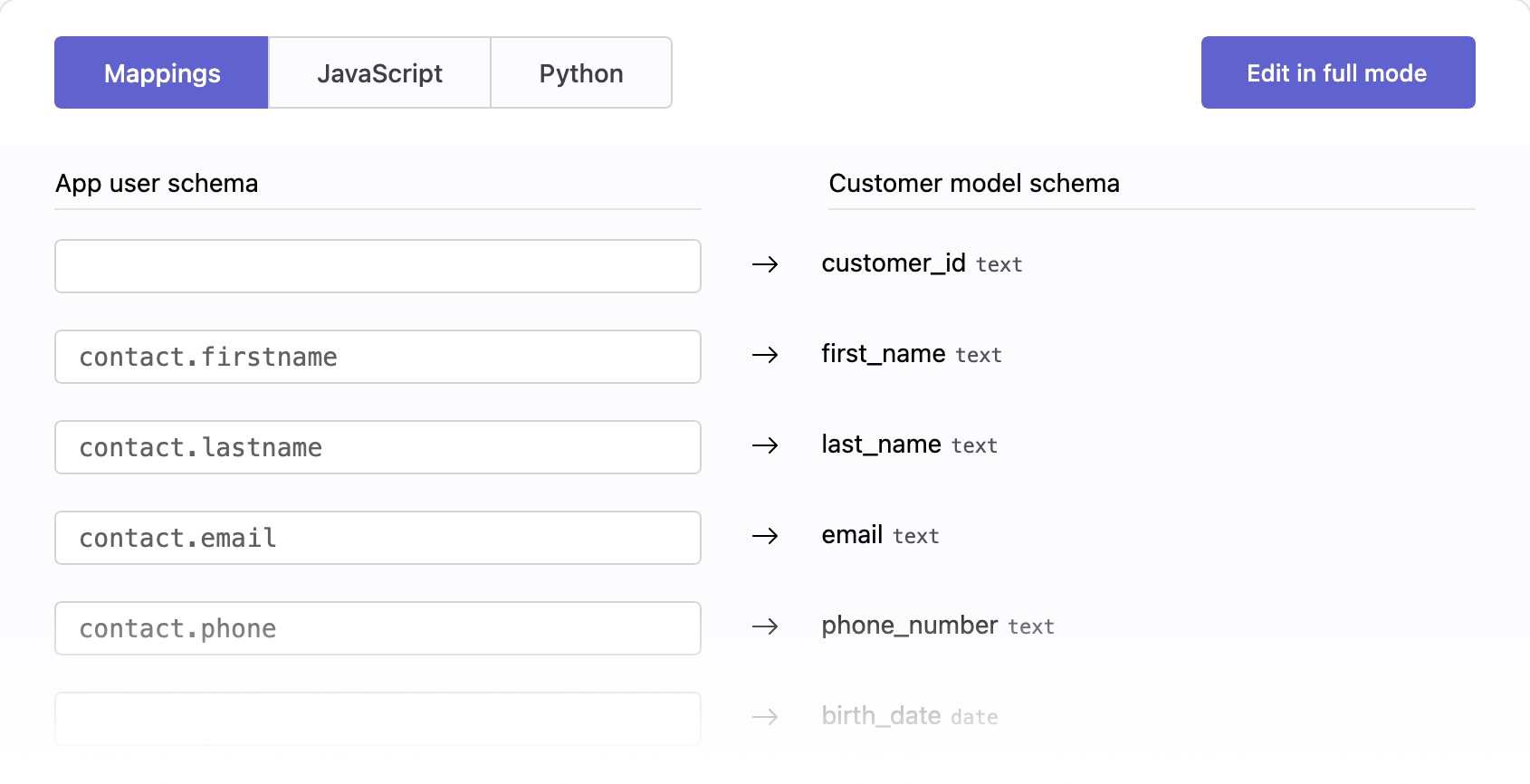
- Map the data. Match each HubSpot property to your Customer Model using Visual Mapping, JavaScript, or Python.
- Set the schedule. Choose how often Krenalis synchronizes contacts.
- Keep it fresh. Krenalis automatically updates your users in the workspace's data warehouse, adding or updating users when new contacts appear.
Steps
Follow these steps in the Krenalis Admin console to connect HubSpot and set up user imports.
1. Generate the HubSpot access token
- Log in to your HubSpot account.
- Click the Settings icon (⚙) in the top navigation bar.
- In the left sidebar, navigate to Account Management → Integrations → Legacy Apps.
- Click Create legacy app.
- Click Private.
- In Basic Info, enter a name for the app (for example, "Krenalis").
- Open the Scopes tab and enable:
crm.objects.contacts.readcrm.schemas.contacts.read
- Click Update, then click Create app and confirm.
- In the Auth tab, under Access token, click Show token, then Copy.
2. Connect Krenalis with HubSpot
- In your Krenalis workspace, open the Sources page.
- Click Add a new source ⊕, then select the HubSpot card.
- Click Add source....
- (Optional) In Name, enter a label to identify the connection later.
- Paste the Access token you copied earlier.
- Click Add to complete the connection.
3. Add a pipeline to import contacts
In the new connection for HubSpot, click Add pipeline... next to the Import HubSpot contacts pipeline.

Each pipeline tells Krenalis which data to read and how to structure it in Krenalis. You can define multiple pipelines per source to manage different datasets.
4. Filter contacts
If you don't want to read all contacts from HubSpot, use filters to select which contacts to sync. Only contacts that match the filter conditions will be synced. If no filters are set, all contacts will be imported. For more information on how to use filters, see the Filters documentation.

5. Enable incremental import
By default, each import processes all contacts from your HubSpot account. You can enable Run incremental import to update only contacts that have changed since the last sync. This option can help reduce processing time and application's API usage while keeping your data up to date.

6. Transformation
Use the Transformation section to decide how contact data is written into Customer Model properties. You can visually map properties from HubSpot to the Customer Model, or use JavaScript and Python for more advanced logic (for example, formatting dates or combining multiple properties).
7. Save your changes
When everything looks good, click Add (or Save if you're editing an existing pipeline).
To import another set of contacts from the same HubSpot account, repeat the process starting with the Add a pipeline to import contacts step.
Pipelines
Once saved, the new pipeline appears in the pipelines list for HubSpot. From here, you can monitor imports, adjust filters, and manage transformations. Each pipeline defines how and when users flow from HubSpot into your warehouse.
With a single HubSpot connection, you can create multiple import pipelines to sync different data segments within the same account.

| Column | Description |
|---|---|
| Pipeline | Name and description of the pipeline. |
| Filters | Conditions used to select which contacts are imported. If not set, all contacts are imported. |
| Enable | Switch to activate or deactivate the pipeline. When disabled, the pipeline will not run, even if a schedule is defined. |
| Run now | Run the import immediately, one time only. Available only when the pipeline is enabled. |
| Schedule | Frequency of automatic imports. You can also run the import manually at any time. |
| Manage | Edit settings such as filter, incremental imports, and transformation |
| ⋮ (More) | Additional options, such as deleting the pipeline. |